A game tile on your new PS5 tells you the game is installed. It doesn't tell you your progress made it over. Before you pass on the old console, pick a save worth protecting and prove it opens on the new one.
Identify your account and the exact game version
On the old console, start the game with the PlayStation account you normally use. Note the edition or version you are running and the last checkpoint you expect to see. The PS4 and PS5 versions of the same title may handle save transfers differently. If you are switching versions as well as consoles, check the game publisher’s transfer instructions instead of assuming the two versions will read the same save.
Check that the cloud copy is current
If you already have PlayStation Plus, look at the game’s synchronization status and compare the save dates before choosing which copy to keep. A tick for automatic sync isn't proof the last checkpoint reached the cloud. If the local copy is newer, or you're unsure which is correct, don't overwrite it with an older cloud download. A save belonging to a different user on the same console is a separate check.
Understand what a USB backup can do
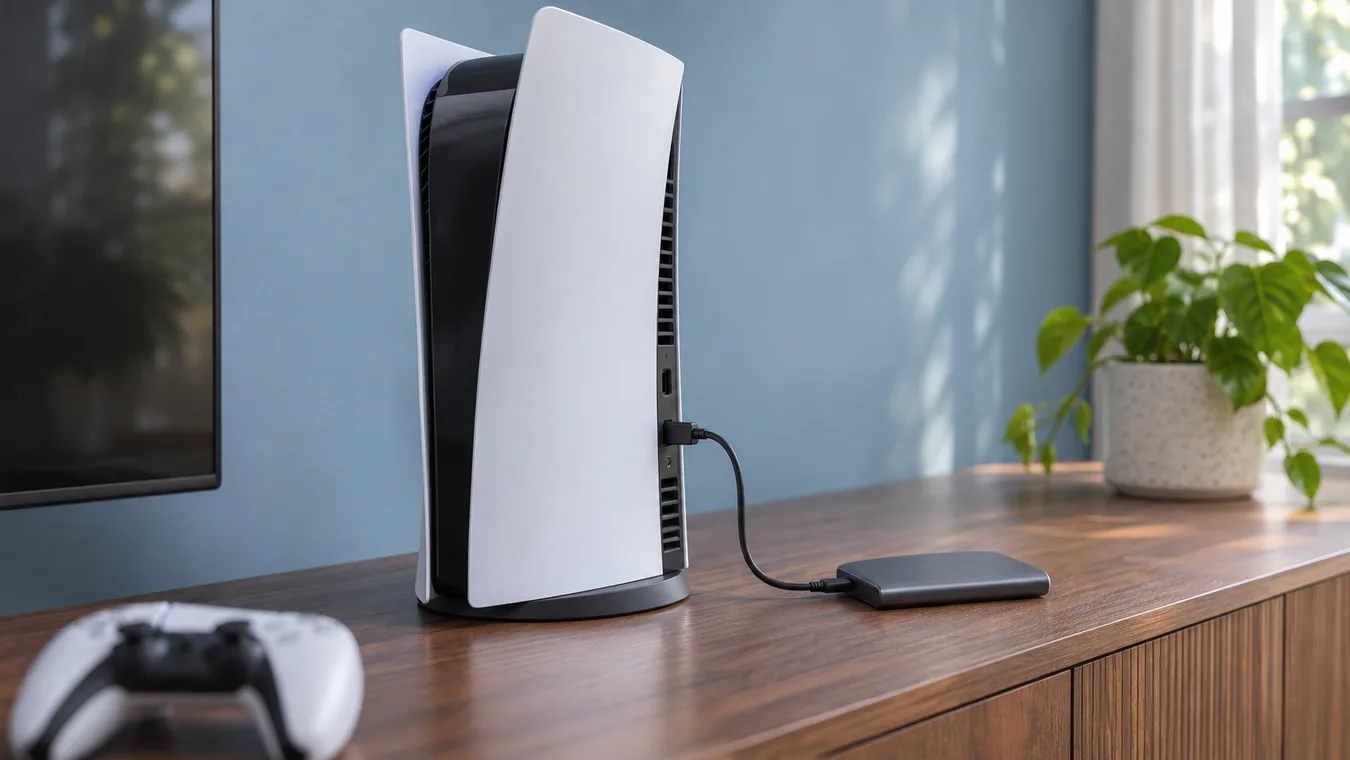
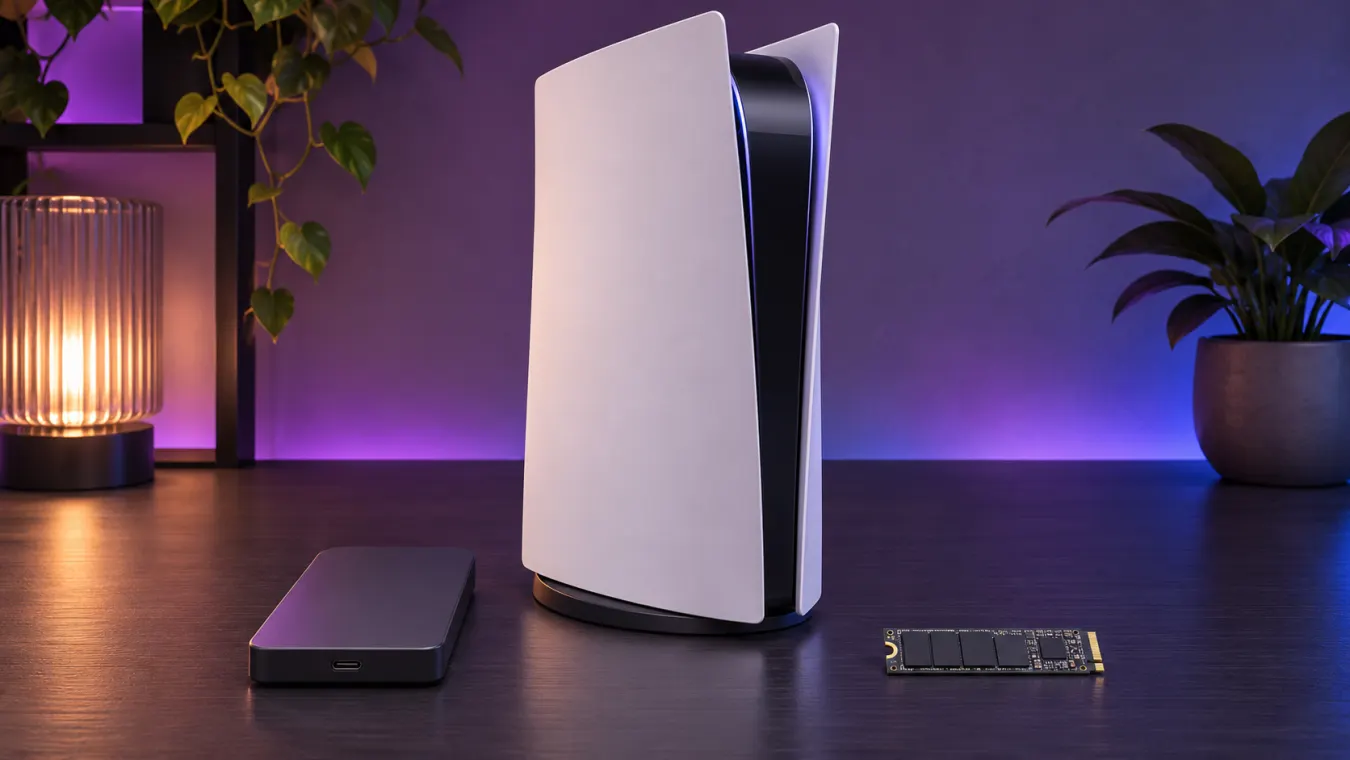
For a console backup, use a compatible FAT32 or exFAT USB drive, not the USB extended storage used for games. In the PS5 system software settings, open Back Up and Restore and include Saved Data. Wait for the console to report completion. This is not an export of a single PS5 save that you can freely import. Restoring that USB console backup erases the data already on the destination PS5, so don't use restoration as a harmless test on a console with anything you want to keep.
Verify one important checkpoint before the handoff
On your own replacement console, sign in with the same PlayStation account, open the correct version of the game, and look for the checkpoint, chapter or character you recorded. Only treat the move as complete once the progress you care about really opens. If you can't check yet, keep the original console and backup intact until you can.