Before removing anything, check what is taking up space and how much room you actually need for your next game. Start with game installations rather than saved data, and keep the games you want to play soon within easy reach.
Check your PS5 storage before moving anything
On the home screen, open Settings → Storage. Under Console Storage → Games and Apps, compare the installed sizes of games you are not currently playing. For a new game or update, check the space the console asks for rather than guessing from another player’s download size. Saved Data is separate from Games and Apps. Leave Saved Data alone when your goal is simply to make room.
Uninstall an idle game or park it on USB
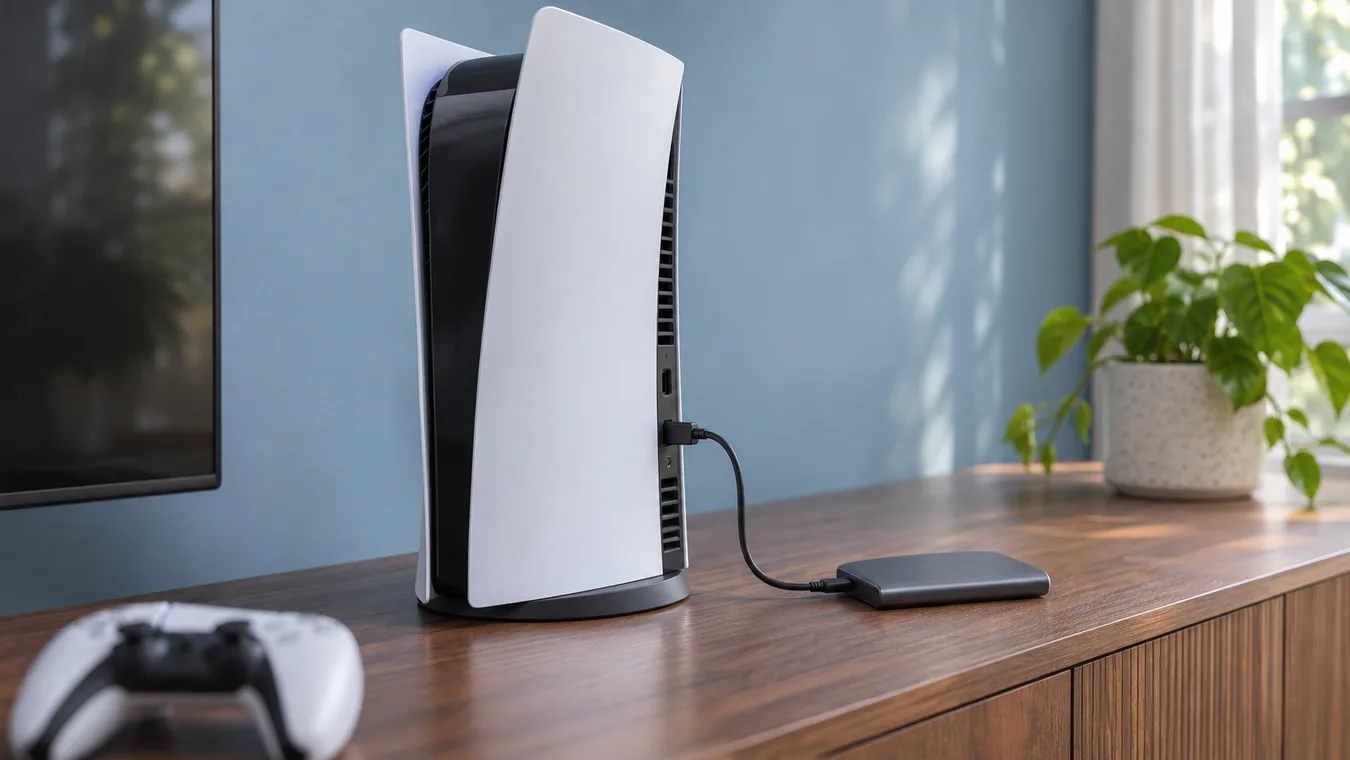
If you rarely play a game and know you can reinstall it later, removing the installation is a straightforward option. Before doing so, make sure you still have the disc or can redownload it from the right account. If you have a compatible drive already set up as USB extended storage, you can move a PS5 game there instead. You can’t play a PS5 game directly from that drive: move it back to console storage or a compatible installed M.2 SSD before playing. Compatible PS4 games can run directly from USB extended storage.
Keep more PS5 games ready to launch with a compatible M.2
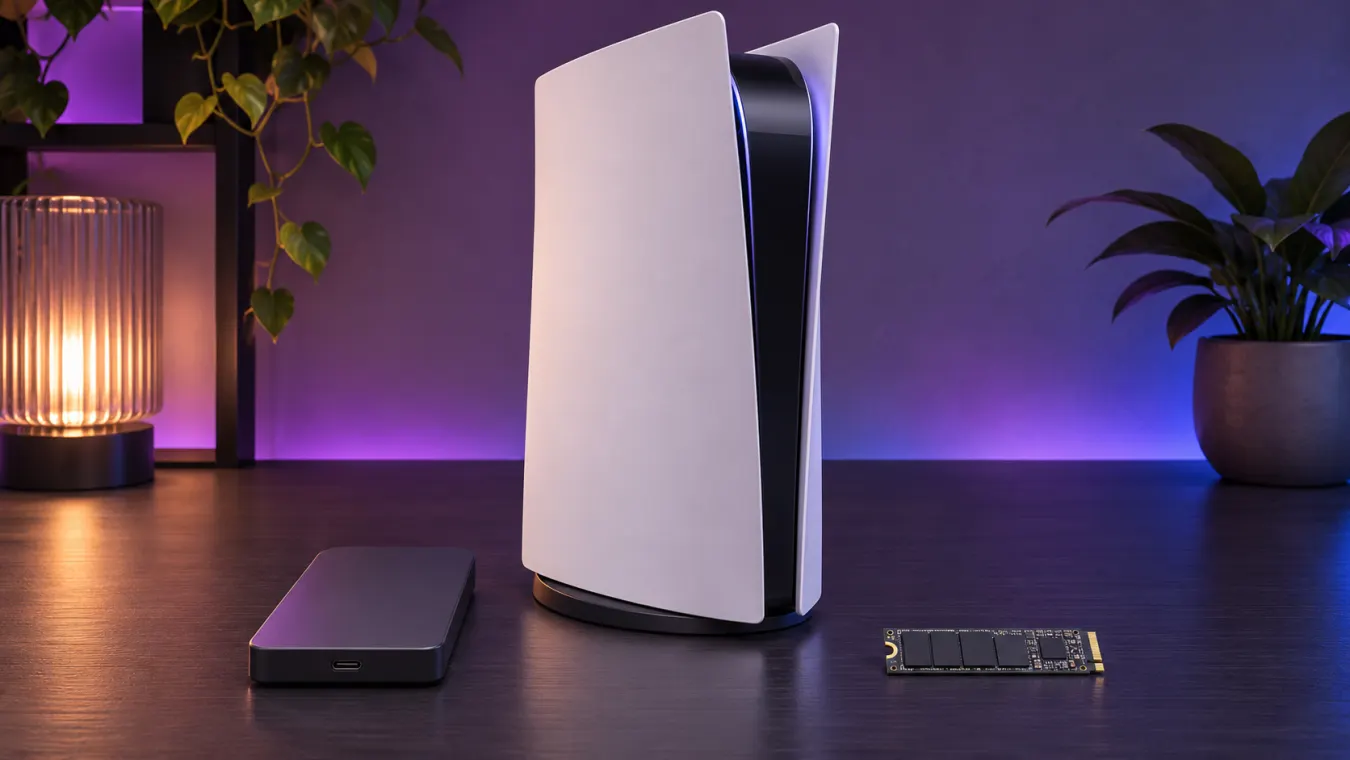
A compatible M.2 SSD installed in the console can hold and run PS5 games. This is an option if you switch between several large games often, rather than a requirement for reclaiming space. Check PlayStation’s storage guide for the supported options and its linked M.2 requirements. Don’t assume any spare SSD will work, and don’t format a drive with files you still need.
Make the smallest change and check the space again
Say you need room for an update tonight. Start with a large game you haven’t opened in months and leave the game you plan to play where it is. Move or uninstall that one installation, then return to Storage and check the free space. If you still need room, look at another idle installation before touching saves or captures you care about.